Building a Design Tool for My Workflow
What if raw charts could turn into ideas instantly?
Rapid Prototyping
AI Prototyping
Custom Tools
Designer Productivity
System Thinking
Workflow Innovation
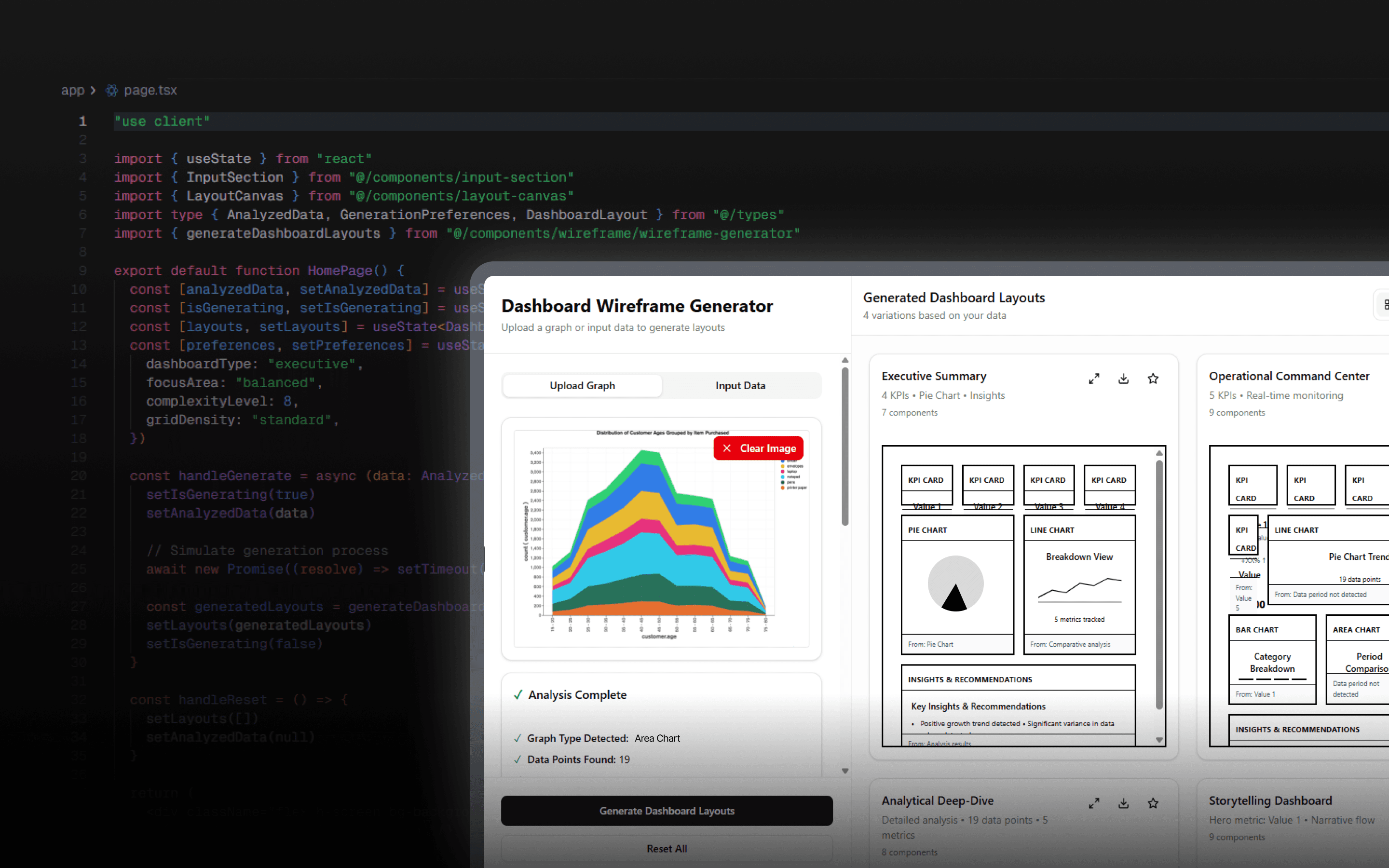
Building a Design Tool
for My Workflow.
Early ideation is where I spent the most time: analyzing inputs, making sense of patterns, and figuring out where to start.
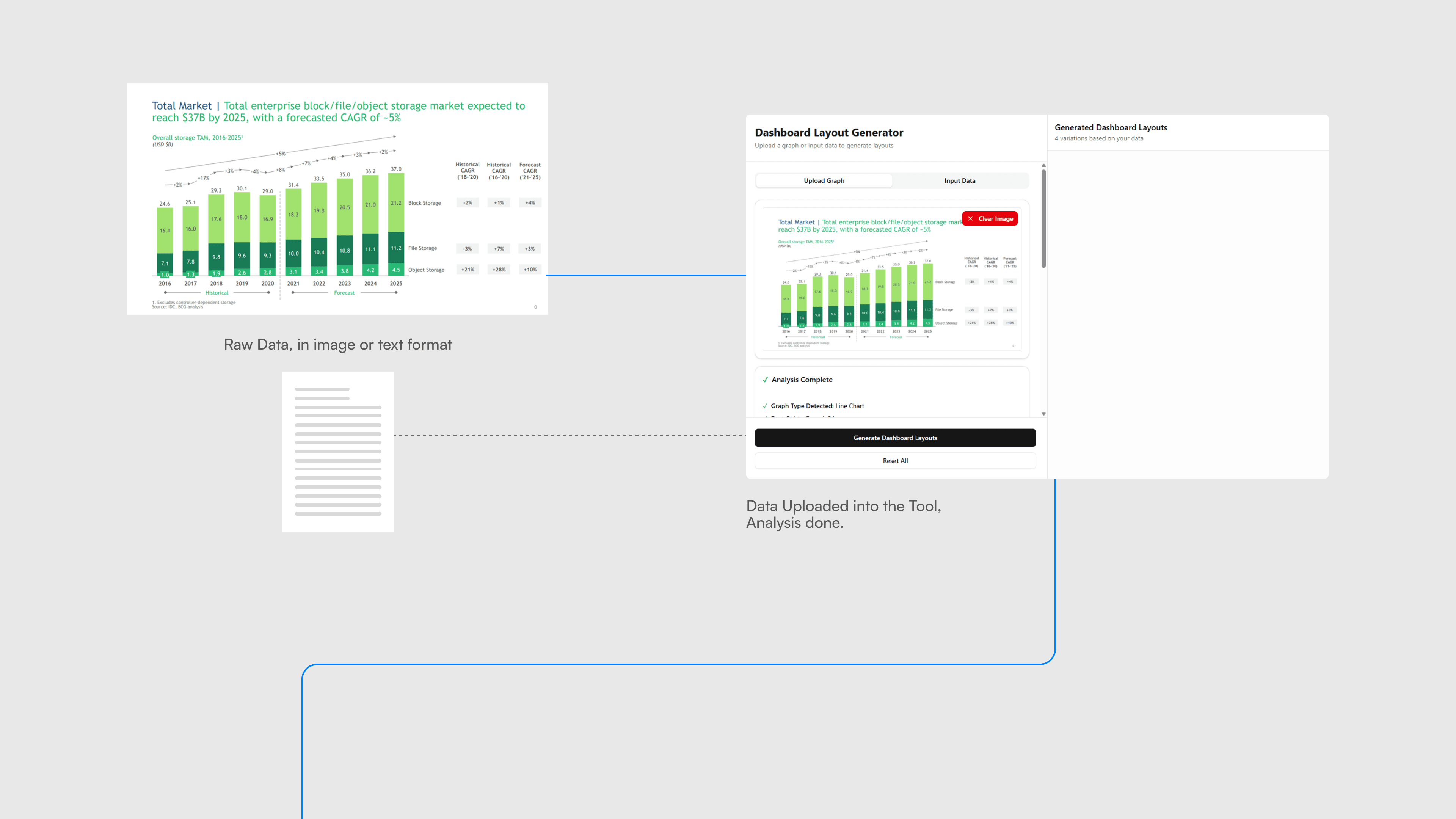
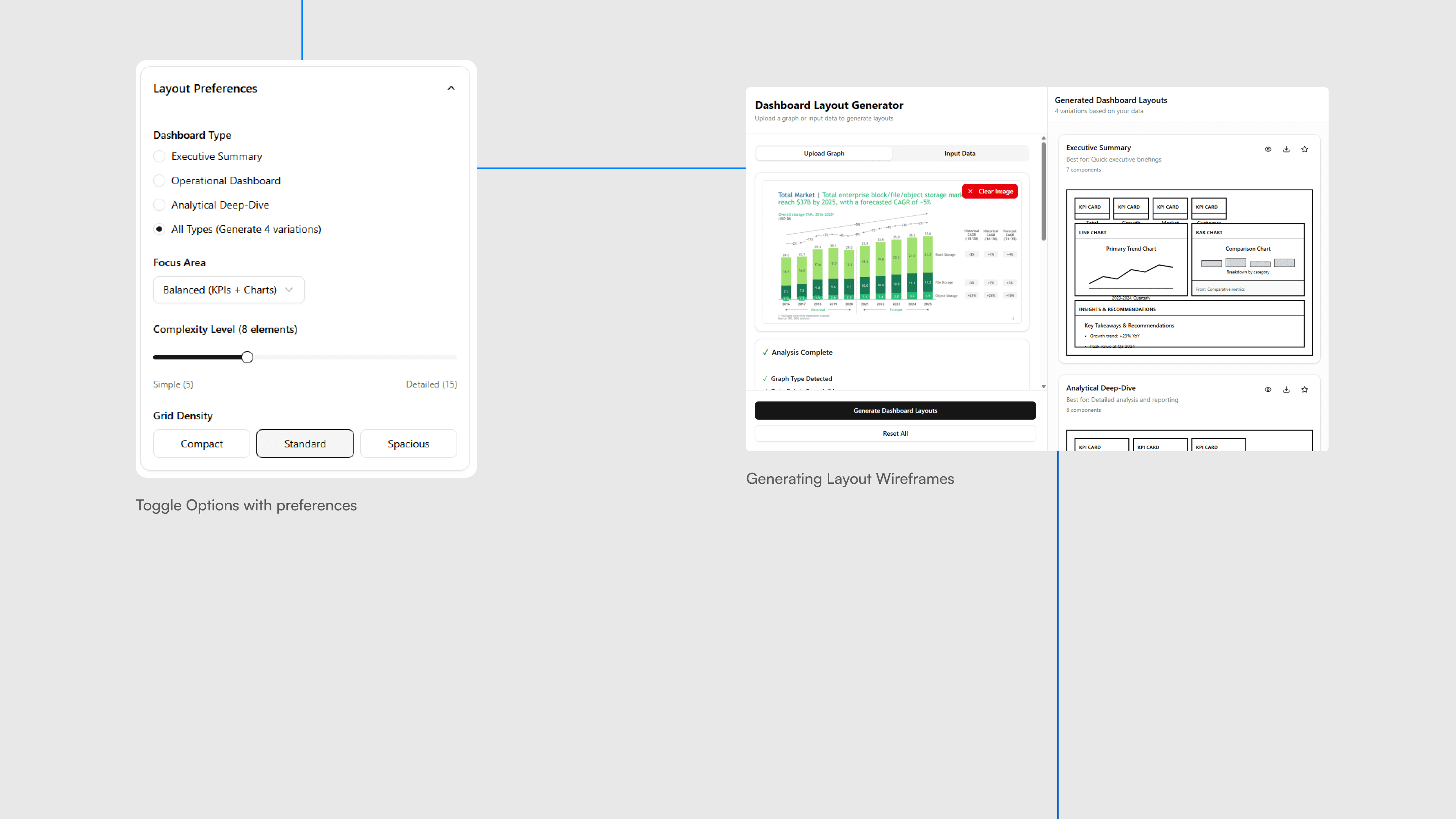
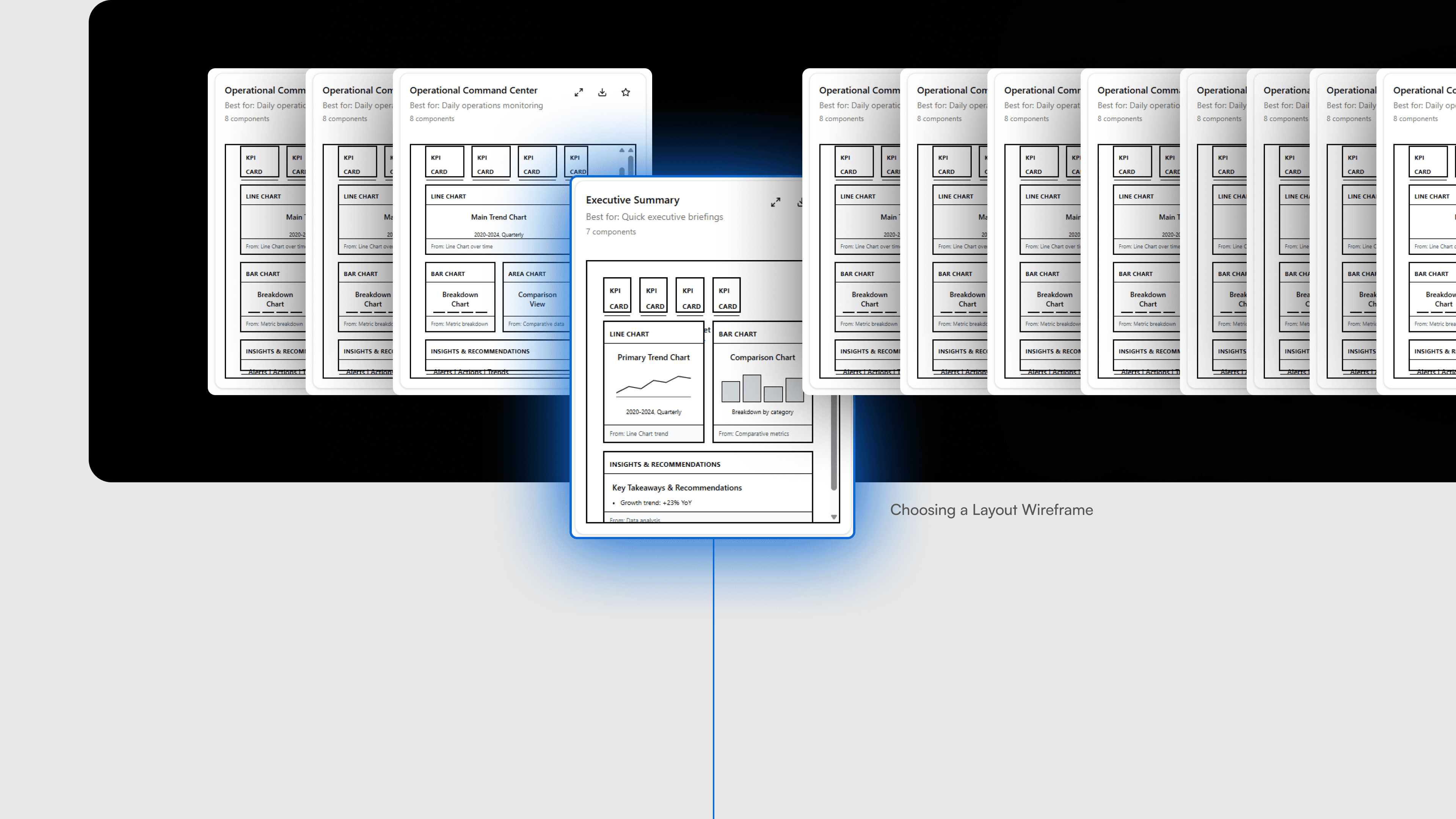
Instead of forcing inspiration, I built an AI tool that turns any uploaded graph or dataset into multiple wireframe and layout concepts within seconds. It does not replace design thinking, but it accelerates it, giving me more mental space for creativity, strategy, and refinement.
Recap: The Core Challenge
Designing with complex data often starts long before the visuals. It begins with interpreting charts, understanding patterns, and deciding what truly matters to the user.
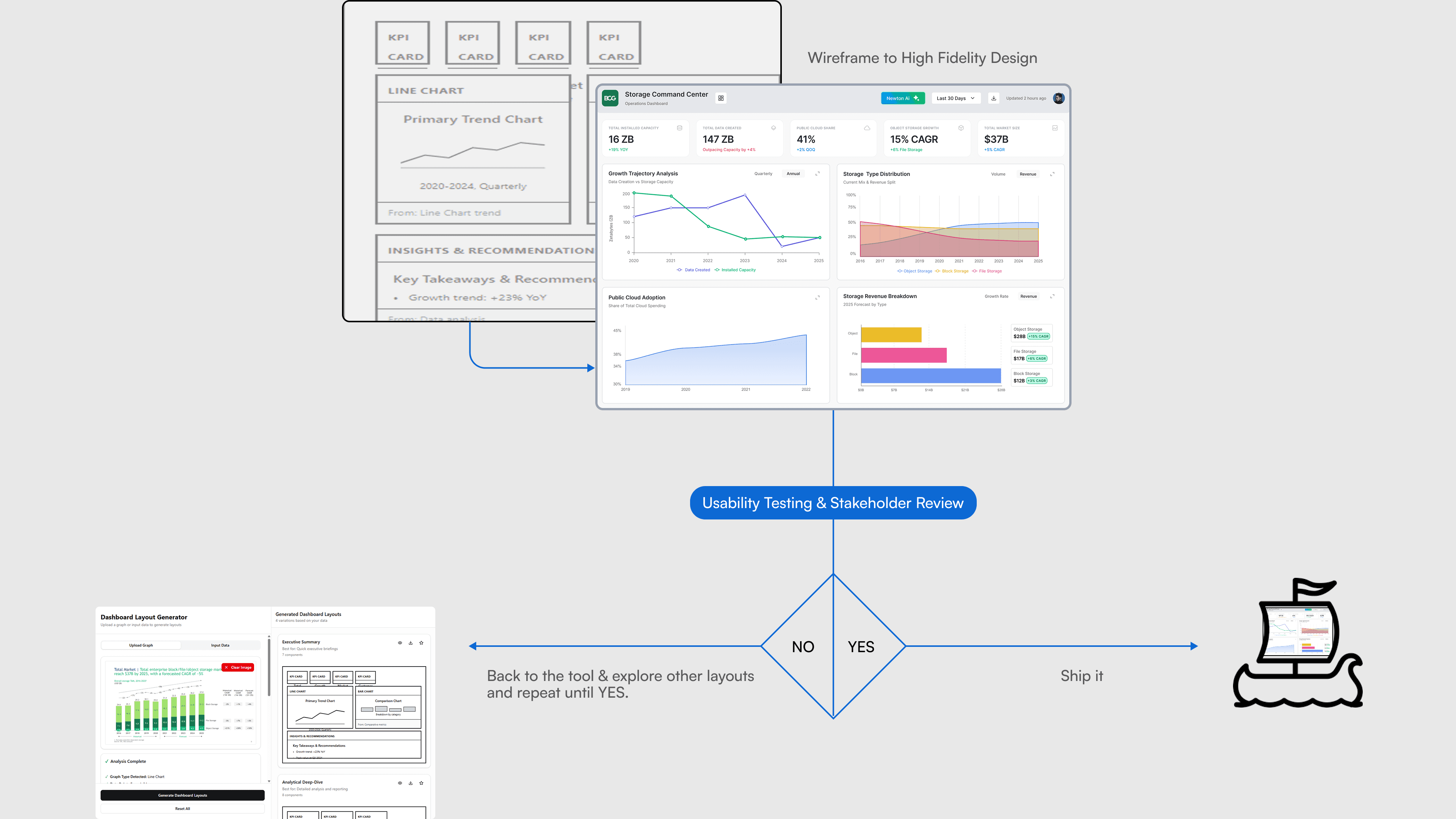
The real task was turning this complexity into a clear, intuitive dashboard that a manager could act on without friction.
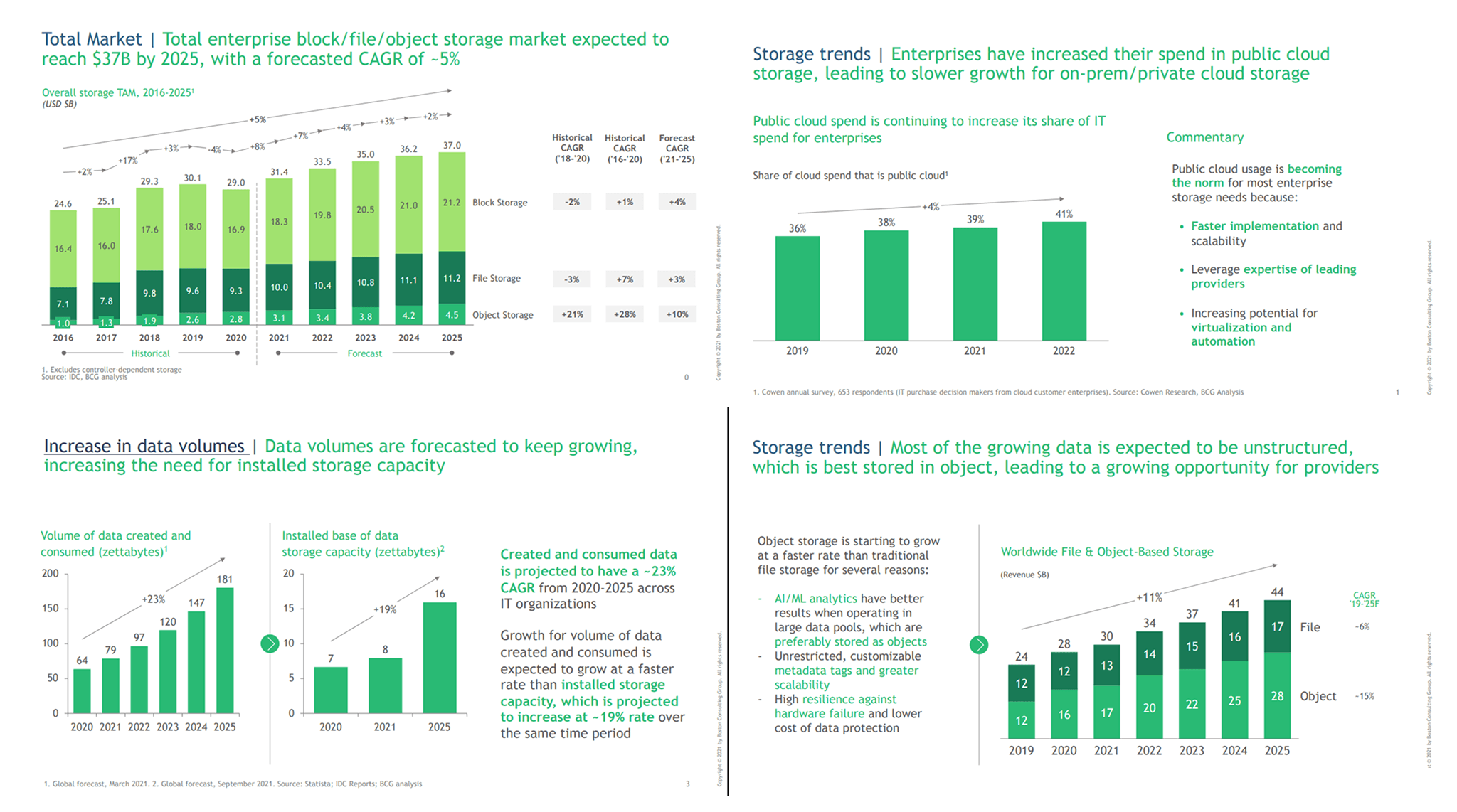
Exploring the Problem Space
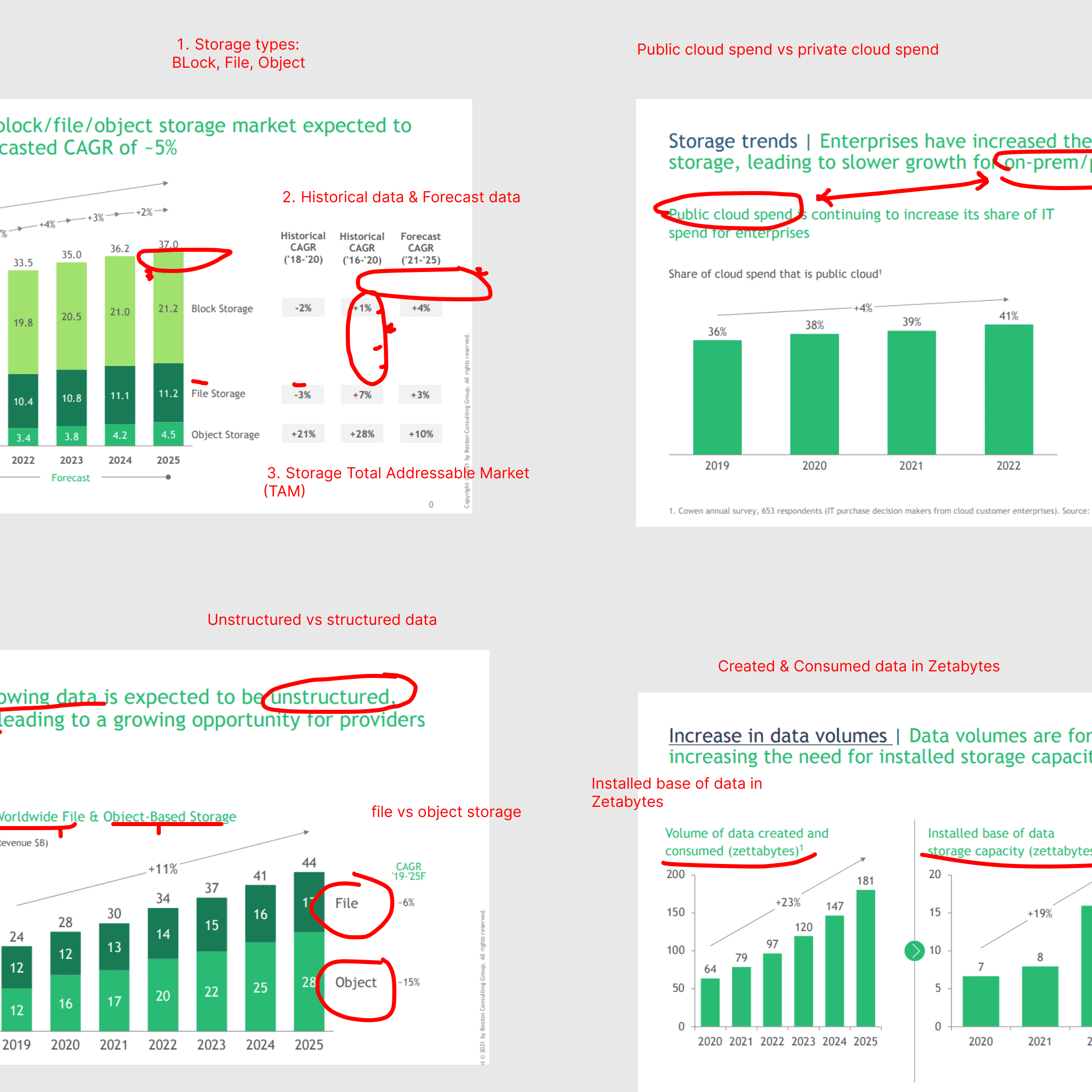
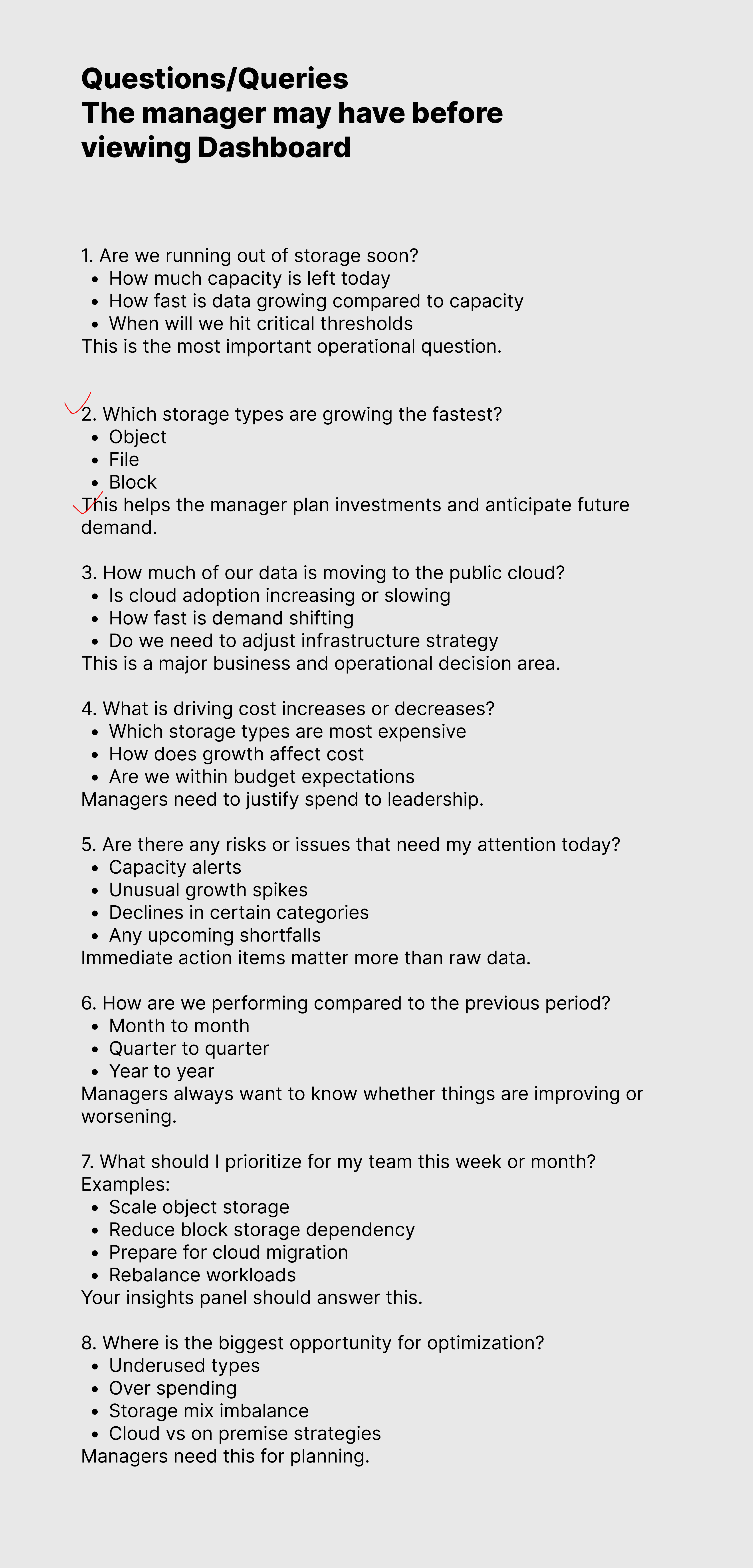
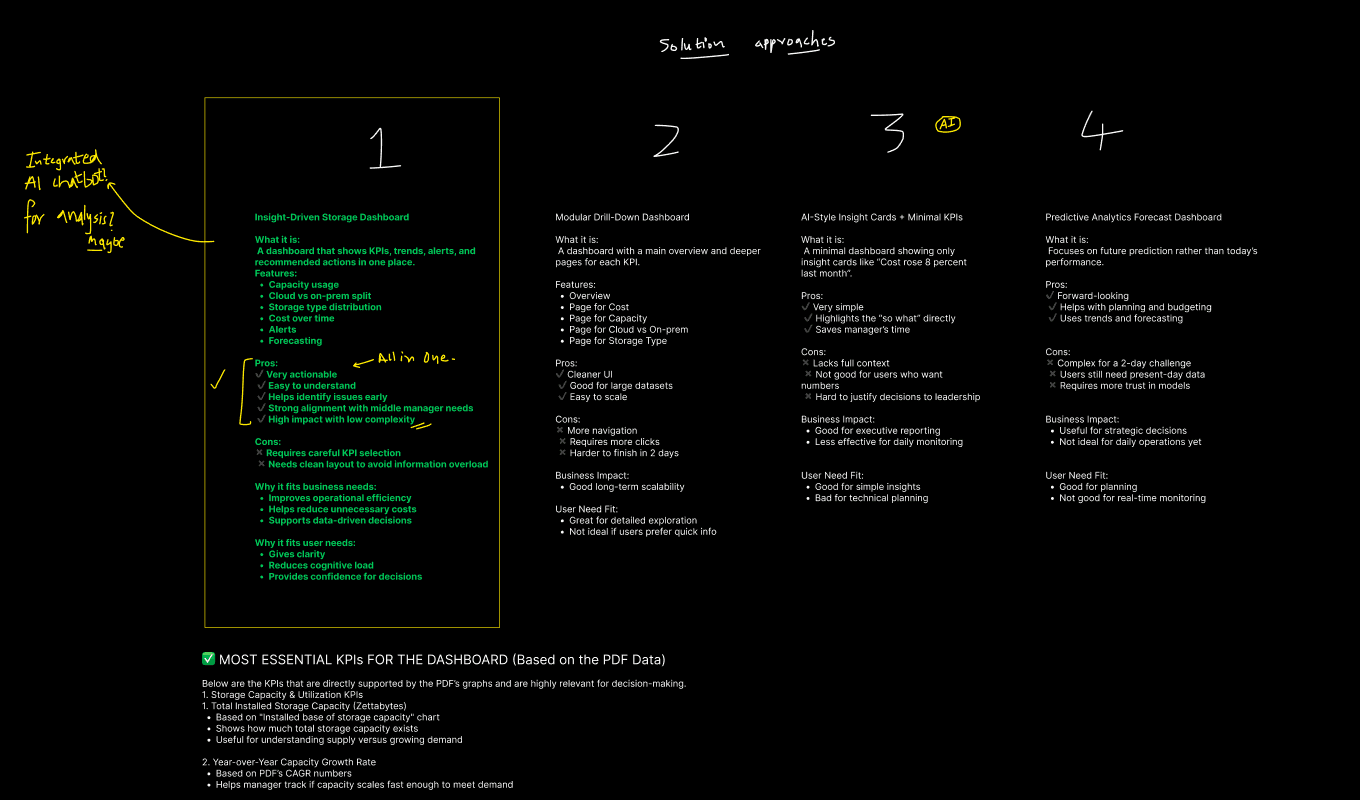
A major part of my workflow involves deep exploration: sketching concepts, analyzing charts, understanding relationships in the data, and building domain literacy around the problem.
This step helps me ground the project in the user’s context and uncover what truly matters before jumping into solutions. It sets the foundation that makes every decision intentional, and the AI tool I later built simply amplifies this process.

Why a custom tool?
As I moved deeper into the project, I invested many hours in sketching, exploring layout structures, testing chart combinations, and iterating through multiple dashboard directions. This manual exploration was essential; it helped me understand the domain, the user, and the constraints.
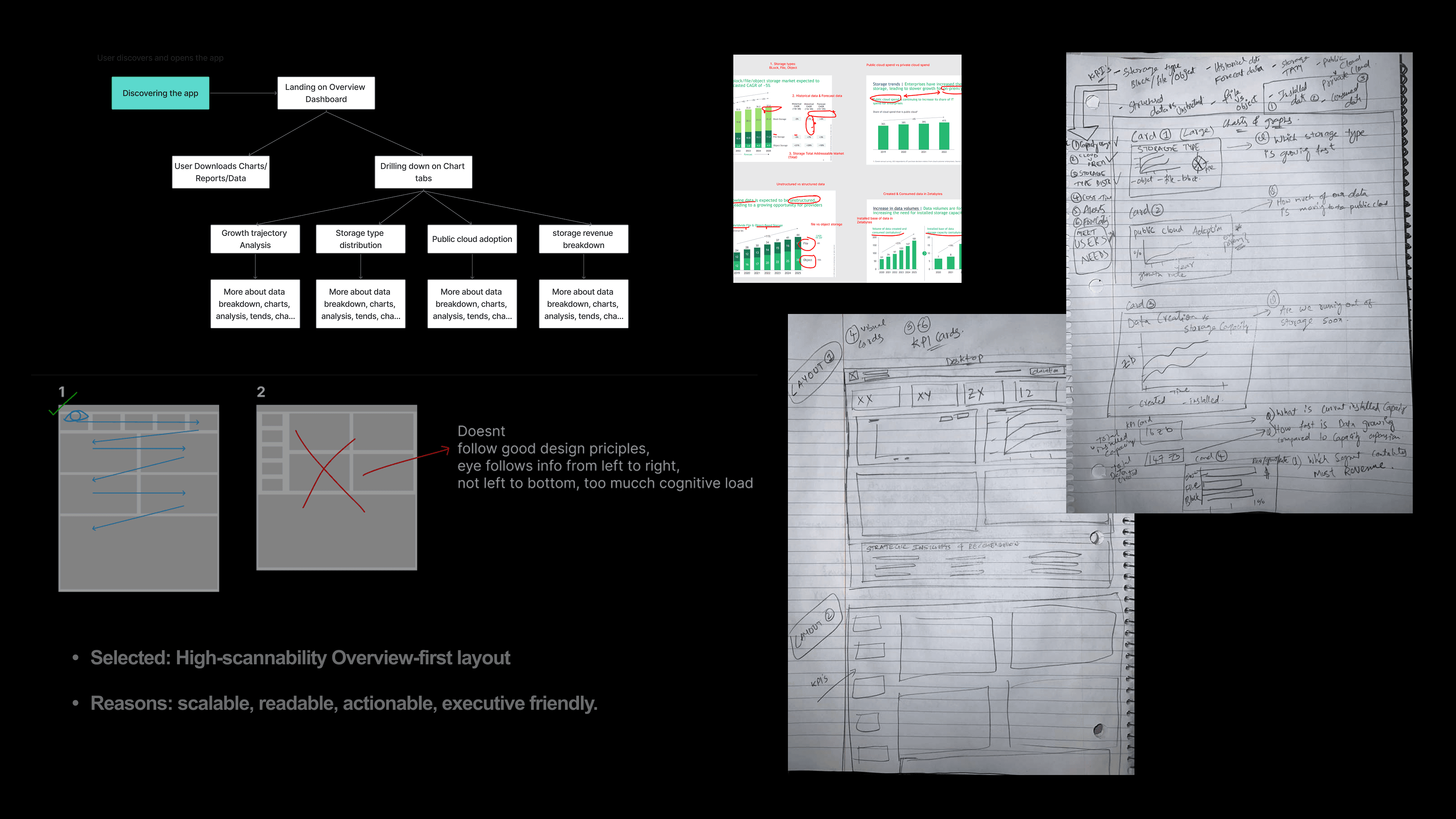
But I soon realized a pattern. Each new iteration, usability test, or redesign cycle required repeating the same foundational layout work again and again. For one round, it was manageable. But at scale, it became clear that my ideation stage needed a boost, not to replace thinking, but to support it.
This pushed me to build a custom tool that accelerates repetitive structural exploration, leaving more room for strategy, judgment, and user-focused decisions.
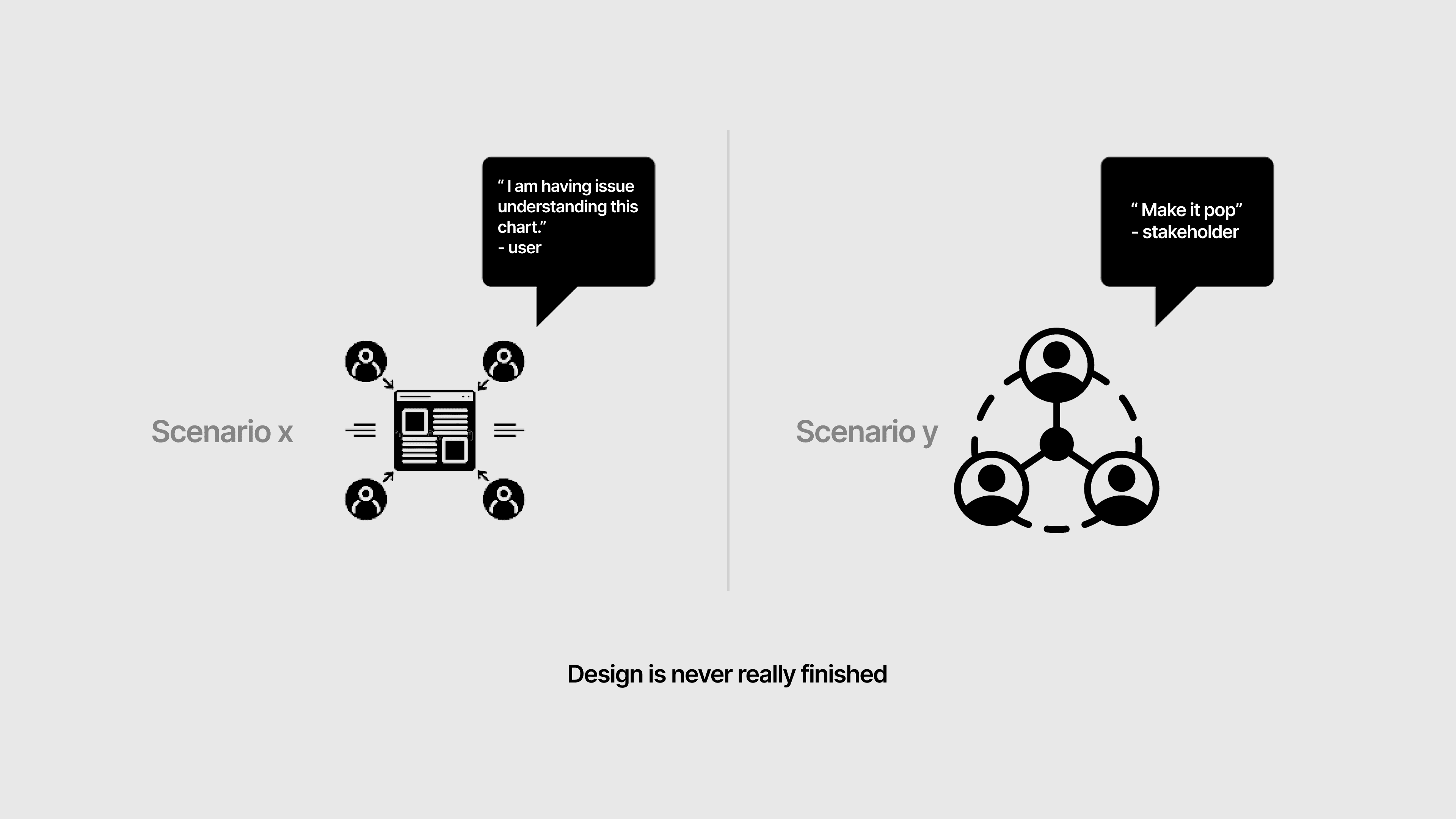
Placement of the custom design tool in my workflow
What I optimized was a very specific zone in my workflow, which tends to be repetitive and time consuming, especially when exploring dozens of layout variations.
By building a custom AI tool, I did not replace research, domain understanding, data literacy, or decision making. Instead, I introduced a helper that generates rapid structural options, so I can spend more time thinking critically, evaluating, and refining the right ideas. The tool saves time, not judgment. It accelerates exploration, not the craft.
This way, my process stays human-centered, and becomes more efficient where it makes sense.
Traditional Double Diamond
Traditional Double Diamond + Custom AI Tool Integrated
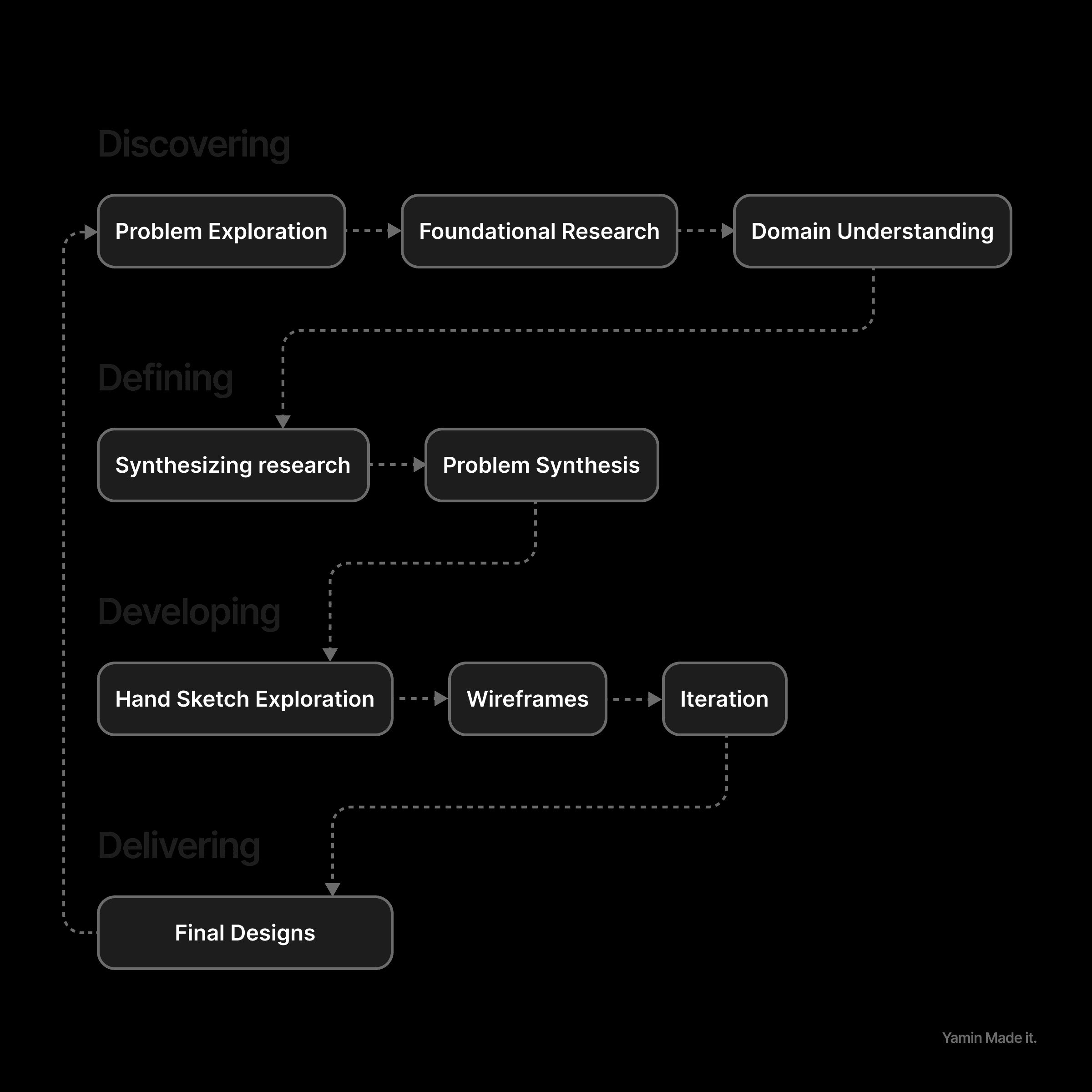
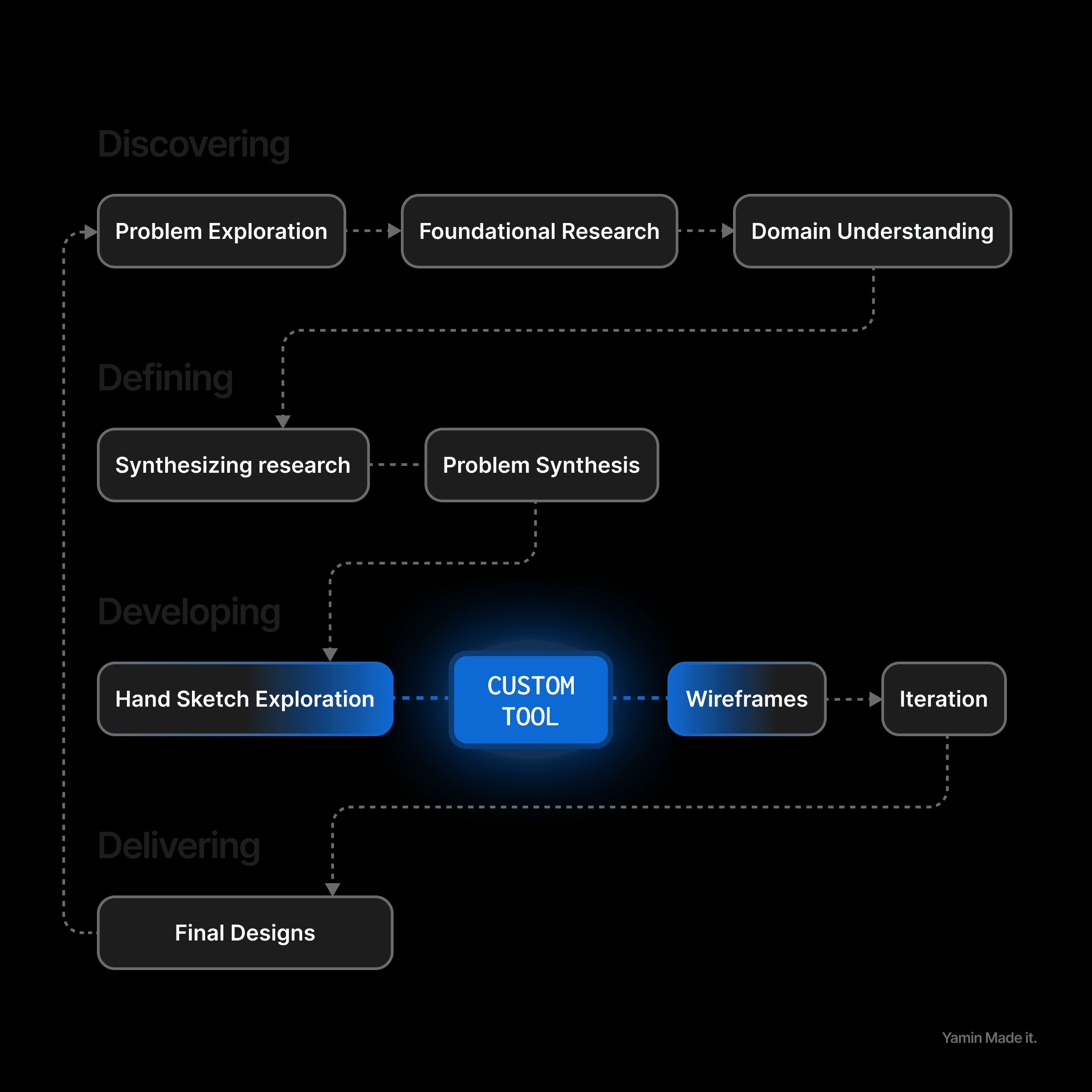
This may vary depending on the product/project.
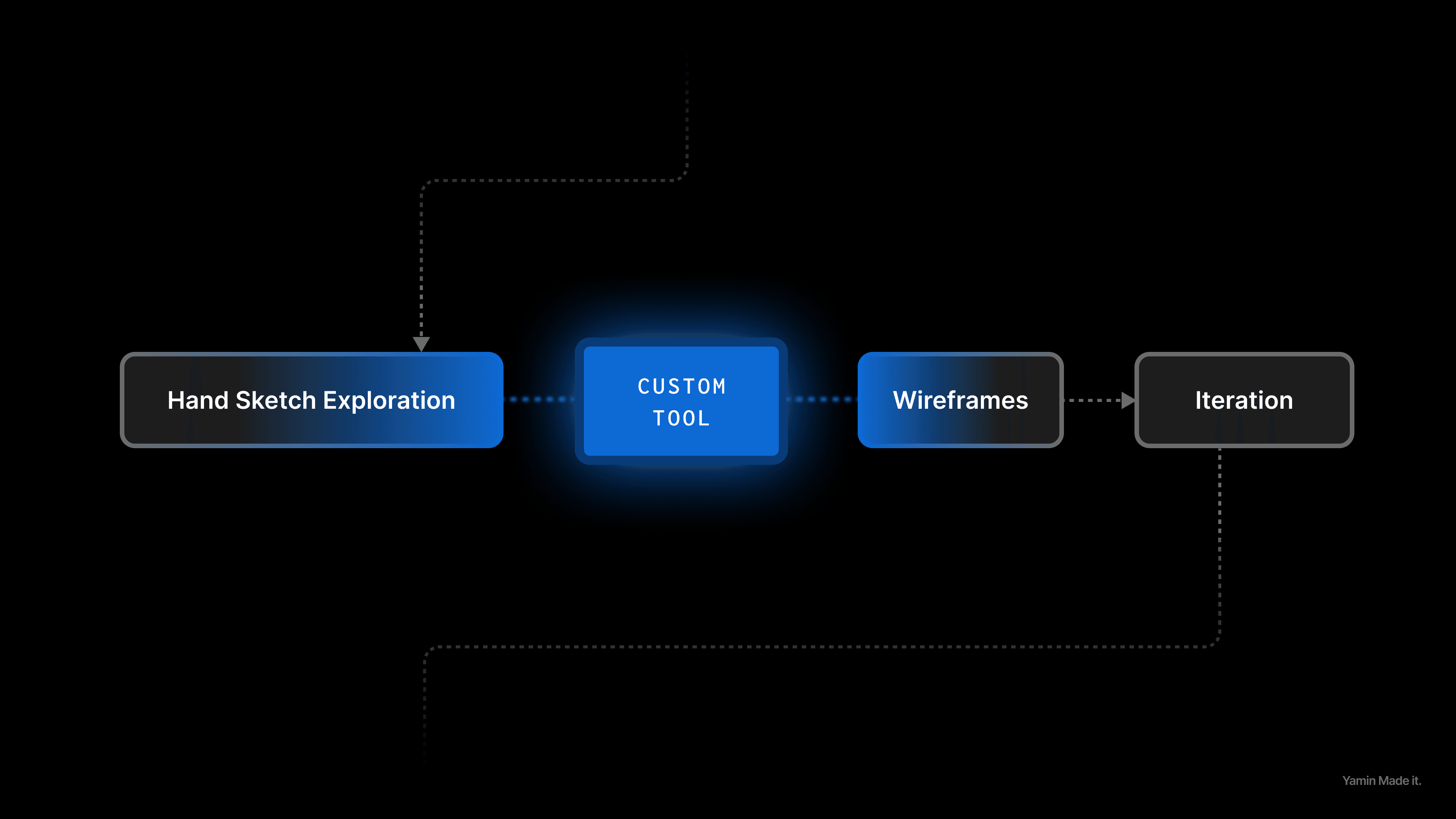
By positioning automation at this depth, I avoid generic or misaligned outcomes and instead use it to accelerate the repetitive structural exploration that naturally happens after the foundational thinking is already complete. The result is not “AI doing design,” but AI amplifying the precision and speed of my ideation without diluting human insight.
Custom Tool for Structural Exploration
(Layouts, wireframe variations)
Building the custom tool with AI
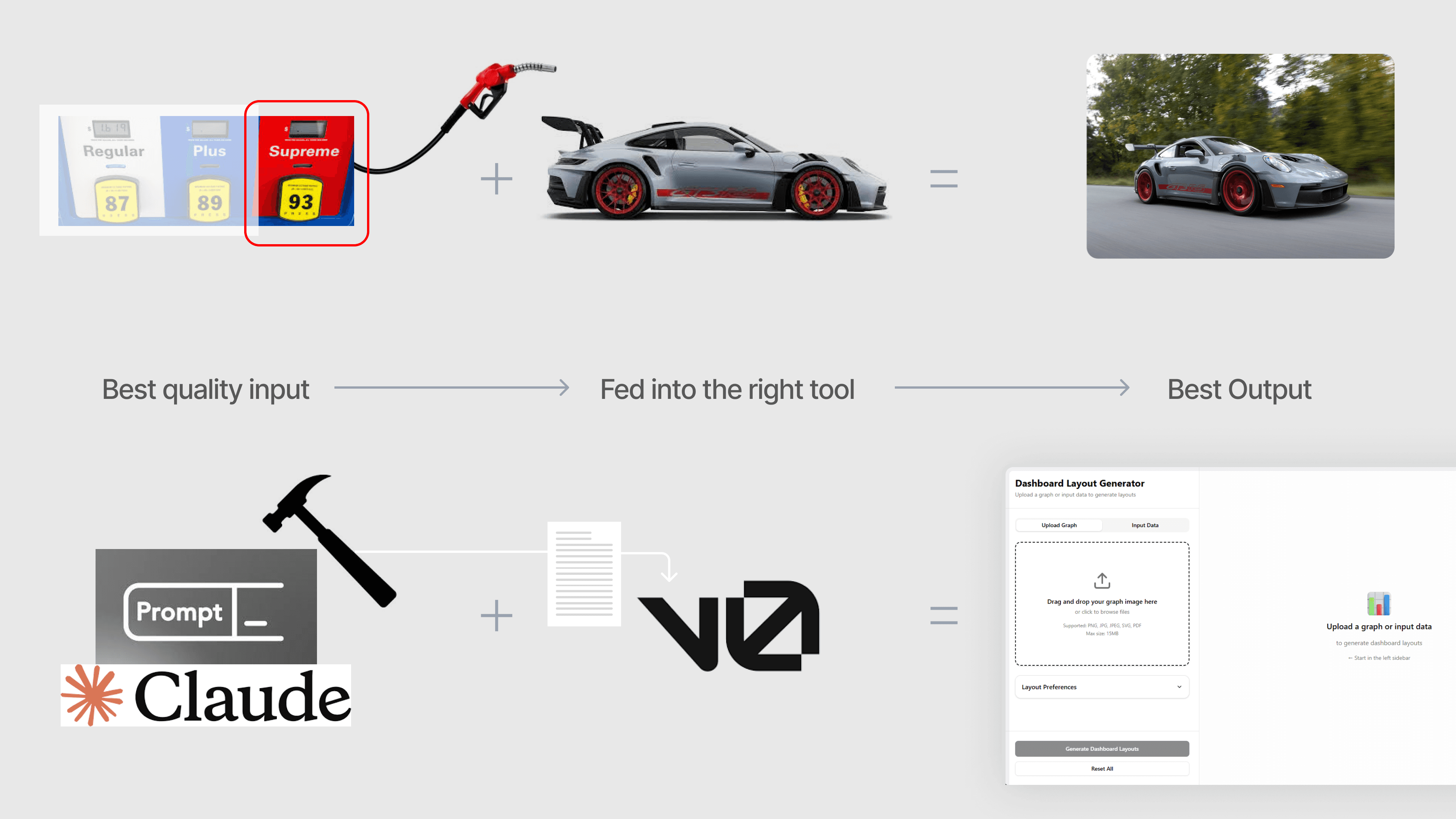
With the help of modern AI tools, creating a custom utility like this became surprisingly straightforward. A well engineered and carefully structured prompt was all it took to generate the foundation of the tool in just a few minutes, making something that would normally require engineering effort both fast and accessible.
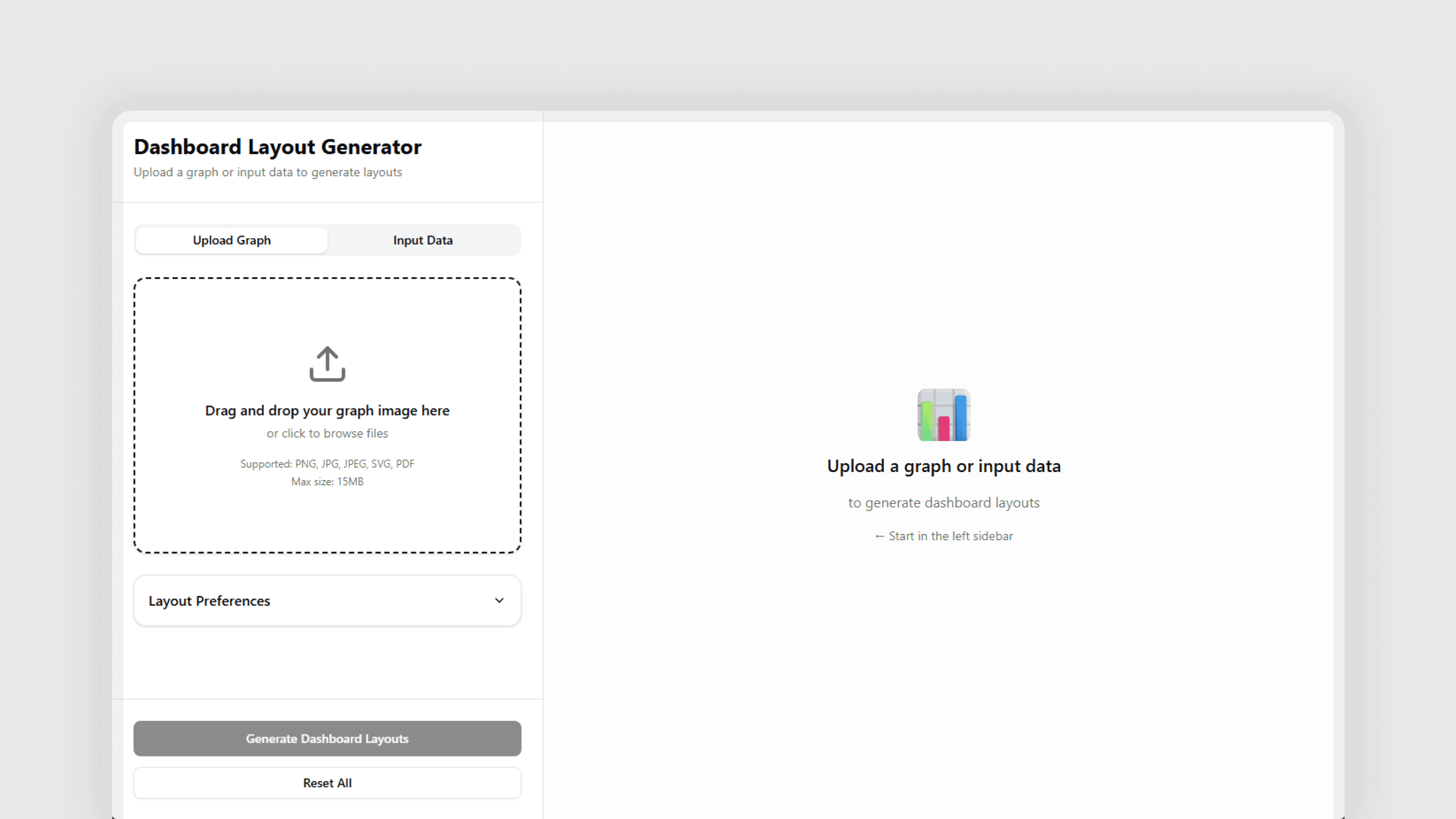
Version 1
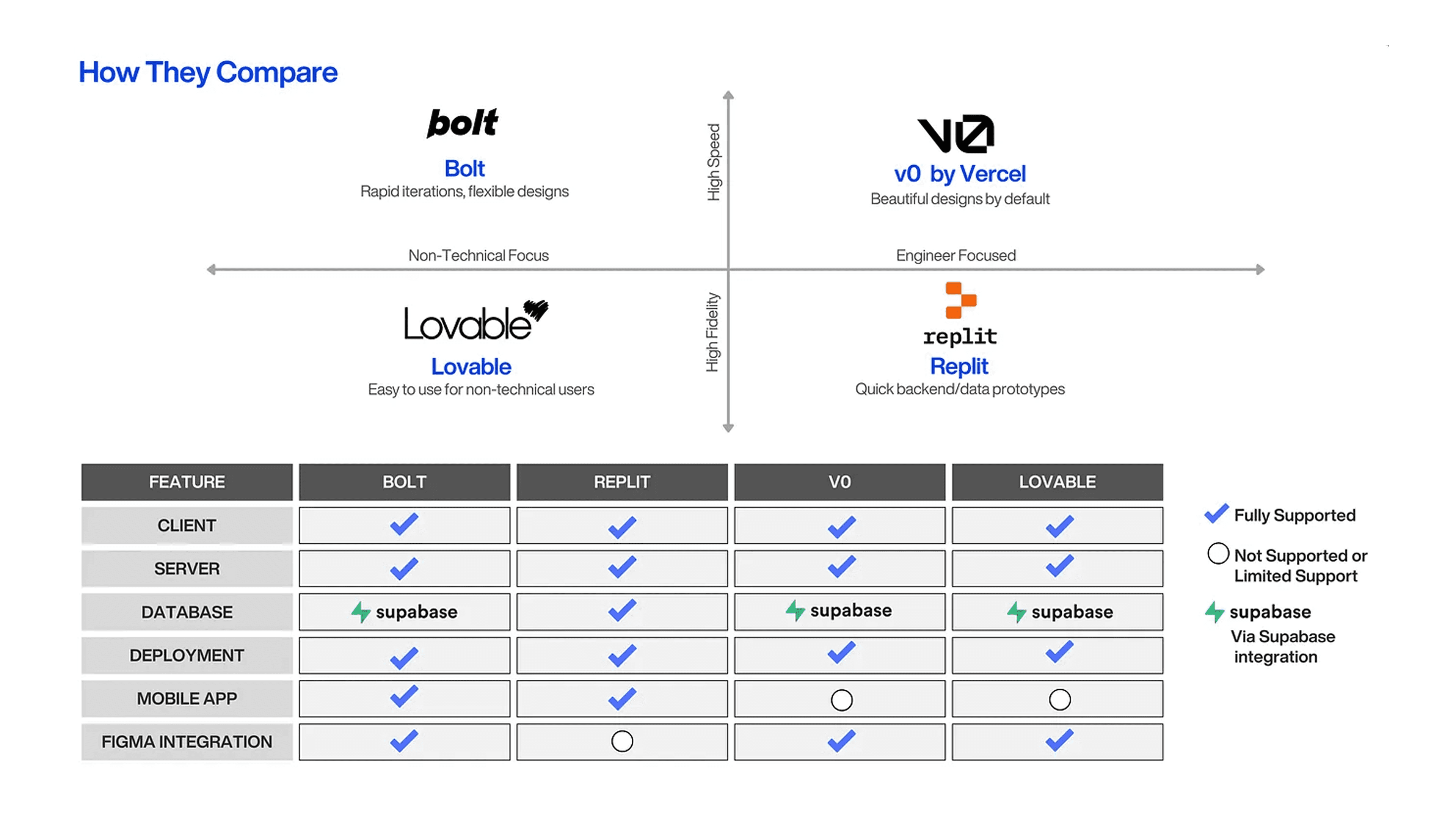
Choice of AI Prototyping Tool
I chose Vercel. There was no dramatic reason behind the choice; most modern AI-enabled platforms are highly capable, and several options like Bolt are equally strong. Vercel simply offered a smooth setup, reliable performance, and a familiar workflow that made the entire process quick to deploy.
Interestingly, when I asked Gemini for comparisons during initial research, it ranked Vercel as the best all-around option for this use case. And with Gemini now outperforming most models in recent benchmarks, its recommendations carried meaningful weight in the decision.
Prompt Engineering
Refining the Prompt Through Back-and-Forth Alignment
Before generating anything, I spent time going back and forth with Claude so it could ask me clarifying questions. This step turned out to be essential. Claude pushed for details I had not considered, helped surface missing context, and made sure every functional requirement was clearly defined. Through this iterative exchange, we aligned on user goals, edge cases, input types, interaction flow, and even naming conventions.
By the end of this refinement, the prompt became a precise specification rather than a loose idea.
First Generation
V1
Once I built the structured prompt in Claude, the first generated version of the tool was surprisingly close to the intended outcome. It produced a fully functional app on the very first pass, complete with the core flow, edge-case handling, and utility functions I had described.
The UI was intentionally simple, exactly as defined in the prompt, but the underlying logic was solid and immediately usable. It was a strong proof that a well engineered prompt can act almost like a blueprint, guiding the model to generate a reliable first version with very little iteration needed.
Tweaking & Fixing
When the first generated layouts came through, the structure was functional but visually inconsistent. I went through each component and aligned the spacing scale, tightened the layout geometry, corrected off-pixel positions, and unified borders and padding across the system.
Tool in Action